Introduction
You can configure Copilot code review to review pull requests automatically. For an overview of automatic pull request reviews, see GitHub Copilot 코드 검토 정보.
Configuring automatic code review for your own pull requests
참고
This is only available if you are on the Copilot Pro, Copilot Pro+, or Copilot Max plans.
-
페이지의 오른쪽 위 모서리에서 프로필 사진을 클릭한 다음, Copilot settings를 클릭합니다.
-
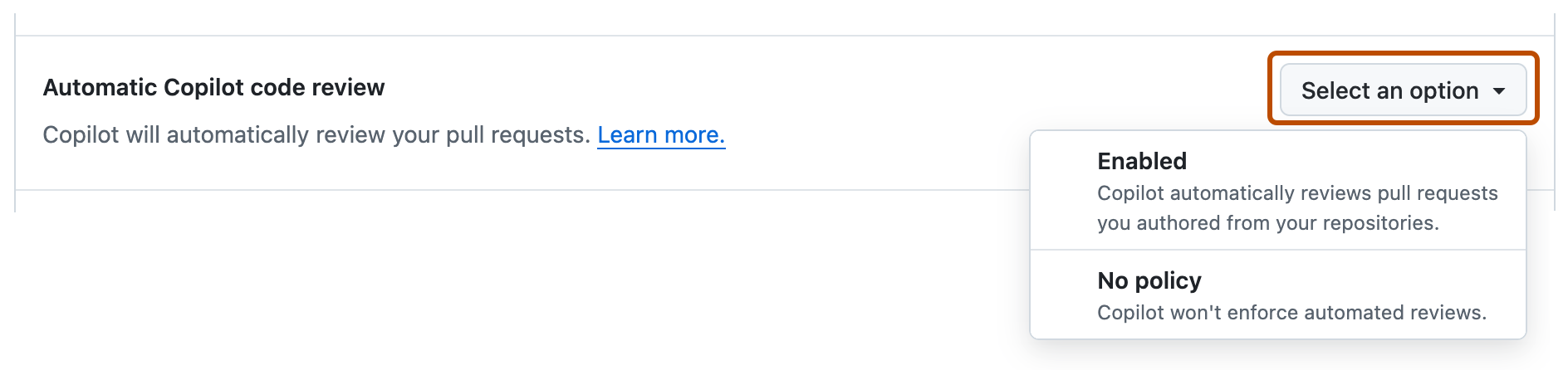
Locate the Automatic Copilot code review option and click the dropdown button.
-
In the dropdown menu, select Enabled.

Configuring automatic code review for a repository
You can enable automatic code reviews for a repository and customize how code reviews are performed.
Enabling automatic reviews
-
GitHub에서 리포지토리의 기본 페이지로 이동합니다.
-
리포지토리 이름 아래에서 Settings를 클릭합니다. "설정" 탭이 표시되지 않으면 드롭다운 메뉴를 선택한 다음 설정을 클릭합니다.

-
왼쪽 사이드바의 "코드 및 자동화"에서 규칙을 클릭한 다음 규칙 세트를 클릭합니다.

-
새 규칙 세트를 클릭합니다.
-
새 분기 규칙 집합을 클릭합니다.
-
"규칙 집합 이름" 아래에 규칙 집합의 이름을 입력합니다.
-
규칙 집합을 활성화하려면 "Enforcement Status"에서 Active를 선택합니다.
-
Under "Target branches," click Add target and choose one of the options—for example, Include default branch or Include all branches.
-
"Target branches"에서 Add target을 클릭하고 대상 옵션 중 하나를 선택합니다.
-
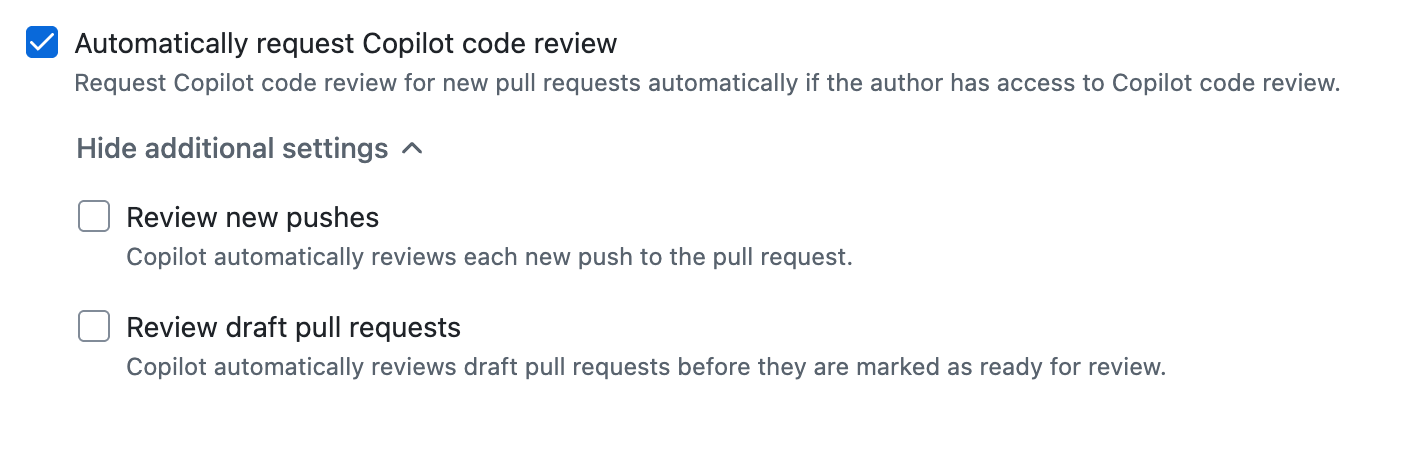
"Branch rules"에서 Automatically request Copilot code review 를 선택합니다.
이렇게 하면 자회사 옵션 집합이 확장됩니다.
-
선택적으로, Copilot이 끌어오기 요청에 대한 모든 새 푸시를 검토하도록 하려면 Review new pushes를 선택합니다.
이 옵션을 선택하지 않으면 Copilot은 끌어오기 요청을 한 번만 검토합니다.
-
선택적으로, Copilot이 초안 상태인 끌어오기 요청을 검토하도록 하려면 Review draft pull requests를 선택합니다.
이는 사용자 검토를 요청하기 전에 오류를 조기에 발견하는 데 유용한 옵션이 될 수 있습니다.
-
페이지 아래쪽에서 Create를 클릭합니다.


Customizing Copilot code review
You can configure how Copilot code review completes code reviews in your repository.
-
GitHub에서 리포지토리의 기본 페이지로 이동합니다.
-
리포지토리 이름 아래에서 Settings를 클릭합니다. "설정" 탭이 표시되지 않으면 드롭다운 메뉴를 선택한 다음 설정을 클릭합니다.
-
사이드바의 "코드, 계획 및 자동화"에서 click Copilot, then Code review.
-
To choose the depth of Copilot code reviews, next to "Review effort level," select the effort level for automatic reviews in this repository.
- Lite: Standard review.
- Balanced: Deeper analysis of complex logic, security-sensitive code, and cross-service changes.
Balanced reviews use more AI credits, and may consume marginally more GitHub Actions minutes. See GitHub Copilot 코드 검토 정보.
-
To choose whether Copilot can approve pull requests in your repository, configure the settings under "Auto-approval."
-
Allow Copilot to approve pull requests: Toggle on to let Copilot submit approving reviews.
-
Allow Copilot approvals to count toward merge requirements: Toggle on so Copilot approvals can satisfy pull request approval requirements.
-
File paths: Optionally, limit which pull requests count toward merge requirements. Enter one file glob per line to count approvals only on pull requests where every changed file matches one of the globs. Leave blank to count approvals for all files. Up to 15 globs are supported.
참고
Copilot approvals are in 공개 미리 보기 and subject to change.
-
Configuring automatic code review for repositories in an organization
You can enable automatic code reviews for repositories in your organization and customize how code reviews are performed.
Enabling automatic reviews
-
GitHub의 오른쪽 위 모서리에서 프로필 사진을 클릭한 다음, Your organizations를 클릭합니다.
-
조직을 클릭하여 선택합니다.
-
조직 이름에서 설정을 클릭합니다. "설정" 탭이 표시되지 않으면 드롭다운 메뉴를 선택한 다음 설정을 클릭합니다.

-
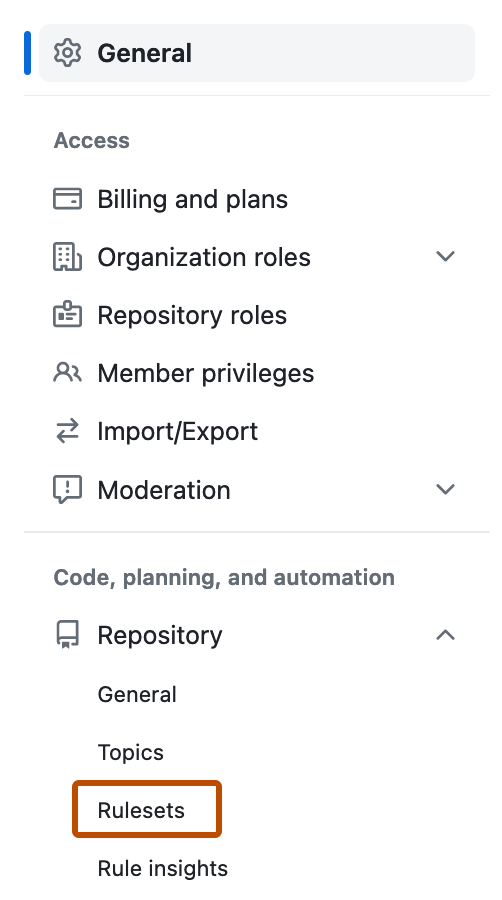
사이드바의 "코드, 계획 및 자동화"에서 리포지토리를 클릭한 다음 규칙 집합을 클릭합니다.
-
새 규칙 세트를 클릭합니다.
-
새 분기 규칙 집합을 클릭합니다.
-
"규칙 집합 이름" 아래에 규칙 집합의 이름을 입력합니다.
-
규칙 집합을 활성화하려면 "Enforcement Status"에서 Active를 선택합니다.
-
Under "Target repositories," click Add target and choose either Include by pattern or Exclude by pattern.
-
Type a pattern that matches the repository names you want to target—for example,
*featureto match all repositories with names ending infeature.For pattern-matching syntax, see 조직 내 리포지토리에 대한 규칙 세트 만들기.
-
Click Add inclusion pattern or Add exclusion pattern.
-
Repeat for any additional patterns.
참고
You can add multiple targeting criteria to the same ruleset. Exclusion patterns are applied after inclusion patterns. For example, you could include any repositories matching the pattern
*cat*, and specifically exclude a repository matching the patternnot-a-cat. -
"Target branches"에서 Add target을 클릭하고 대상 옵션 중 하나를 선택합니다.
-
"Branch rules"에서 Automatically request Copilot code review 를 선택합니다.
이렇게 하면 자회사 옵션 집합이 확장됩니다.
-
선택적으로, Copilot이 끌어오기 요청에 대한 모든 새 푸시를 검토하도록 하려면 Review new pushes를 선택합니다.
이 옵션을 선택하지 않으면 Copilot은 끌어오기 요청을 한 번만 검토합니다.
-
선택적으로, Copilot이 초안 상태인 끌어오기 요청을 검토하도록 하려면 Review draft pull requests를 선택합니다.
이는 사용자 검토를 요청하기 전에 오류를 조기에 발견하는 데 유용한 옵션이 될 수 있습니다.
-
페이지 아래쪽에서 Create를 클릭합니다.


Customizing Copilot code review
You can configure how Copilot code review completes code reviews in repositories in your organization.
-
GitHub의 오른쪽 위 모서리에서 프로필 사진을 클릭한 다음, Your organizations를 클릭합니다.
-
조직을 클릭하여 선택합니다.
-
조직 이름에서 설정을 클릭합니다. "설정" 탭이 표시되지 않으면 드롭다운 메뉴를 선택한 다음 설정을 클릭합니다.
-
사이드바의 "코드, 계획 및 자동화"에서 click Copilot, then Code review.
-
To choose the depth of Copilot code reviews, next to "Review effort level," select the default effort level for automatic reviews in repositories in your organization.
- Lite: Standard review.
- Balanced: Deeper analysis of complex logic, security-sensitive code, and cross-service changes.
Balanced reviews use more AI credits, and may consume marginally more GitHub Actions minutes. See GitHub Copilot 코드 검토 정보.
-
To choose whether Copilot can approve pull requests in your repositories, select an option under "Approvals," next to "Count Copilot approvals toward merge requirements."
-
Enabled everywhere: Copilot approvals can count toward merge requirements in every repository in the organization.
-
Let repositories decide: Repository admins can decide this in repository settings.
-
Enable for selected repositories: Copilot approvals can count toward merge requirements only in the repositories you select. If you choose this option, also assign the repositories you want to enable this for.
-
Disabled everywhere: Copilot approvals cannot count toward merge requirements in any repository in the organization.
참고
Copilot approvals are in 공개 미리 보기 and subject to change.
-
Configuring automatic code review for an enterprise
You can enable automatic code reviews for your enterprise and customize how code reviews are performed.
Enabling automatic reviews
- Create an enterprise-level branch ruleset. See 규칙 집합을 사용하여 엔터프라이즈에서 코드 거버넌스 시행.
- Target the organizations and repositories where Copilot code review should run automatically.
- Enable the Automatically request Copilot code review policy.
- Optionally, enable automatic reviews for draft pull requests and after each push to a pull request.
- Click Create.
Customizing Copilot code review
You can configure how Copilot code review completes code reviews for your enterprise.
- 귀하의 기업으로 이동하세요. 예를 들어 GitHub.com의 Enterprises 페이지에서.
- 페이지 맨 위에서 AI 컨트롤을 클릭합니다.
- Scroll down to "Available Agents", then click Copilot code review.
- Next to "Copilot code review", select a policy.
- Then choose which Copilot code review features to enable for your enterprise.
- To choose whether Copilot can approve pull requests in your organizations, next to "Allow Copilot to approve pull requests," select a policy.
-
Let organizations decide: Organization owners can choose whether to enable Copilot approvals.
-
Enable for selected organizations: Copilot approvals are enabled only for the organizations you select.
-
Disabled everywhere: Organizations cannot enable Copilot approvals. This is the default.
참고
Copilot approvals are in 공개 미리 보기 and subject to change.
-